
How to connect your voice notes to Claude or ChatGPT (MCP)
By Gustav Tøstie, founder of voicedropPublished 6 min read
Written by the founder of VoiceDrop. We compare fairly, but we’re obviously fans of our own app.
Short answer
To connect voice notes to Claude, add VoiceDrop’s read-only MCP server, https://tryvoicedrop.com/mcp, as a custom connector in Claude’s Connectors settings and sign in through your browser. No API key is needed. Claude can then search your transcripts, speaker information and Smart Notes. ChatGPT, Codex and Claude Code connect to the same URL. The connector is included on every VoiceDrop plan, including the free one.
Why people pick VoiceDrop
- Read-only by design: your assistant reads transcripts and Smart Notes, never audio, and cannot change anything.
- No API key: connect once with a browser sign-in, and revoke any time in Settings, AI connections.
- Works with the tools you use: Claude, ChatGPT, Codex and Claude Code connect to the same URL.
- One voice history: meetings, iPhone voice notes and, if you turn on sync, desktop dictations from one account, on every plan including the free one.
Voice notes are useful when you record them and much more useful when your AI assistant can read them. Instead of copying a transcript into a chat, you can ask Claude or ChatGPT to find last Tuesday’s meeting and draft the follow-up email. This guide explains how that works, what is shared, and how to set it up.
What is MCP, in plain words?
MCP, the Model Context Protocol, is an open standard for connecting AI applications to outside data and tools. The official MCP site compares it to a USB-C port for AI applications: one standard plug, so an assistant like Claude or ChatGPT can connect to many sources without a custom integration for each.
In practice, an app runs an MCP server that offers a few named tools. When you add that server to your assistant and approve access, the assistant can call those tools during a conversation, for example to search your notes, and use the result in its answer.
What does the VoiceDrop connector share?
VoiceDrop runs one read-only MCP server at https://tryvoicedrop.com/mcp. You sign in with your VoiceDrop account in the browser (OAuth), so there is no API key to copy or store. It offers two tools: voicedrop_list_history to list and search your history, and voicedrop_get_history to read one item.
- Your assistant can read cloud transcripts, speaker information and Smart Notes (summary, decisions and action items).
- It cannot read audio. Audio is not kept in your VoiceDrop account after successful transcription.
- Quick dictations from the desktop app stay on your computer unless you turn on cloud sync, so they are only included after you opt in.
- The connector is read-only. The assistant cannot edit, delete or add anything in VoiceDrop.
- Each assistant gets its own connection and consent. Access lasts 30 days, then you reconnect.
- You can revoke access at any time in VoiceDrop, Settings, AI connections.
How do I connect VoiceDrop to Claude?
This works on claude.ai in the browser and in the Claude desktop app. You do not need a terminal.
- Open Connectors In Claude, open Customize, then Connectors. Some versions use Settings, then Connectors.
- Add a custom connector Choose + and then Add custom connector. Name it VoiceDrop and enter
https://tryvoicedrop.com/mcp. Leave the advanced OAuth fields empty. - Sign in and approve Choose Connect, sign in to VoiceDrop in the browser window and approve read-only access. Check that the account shown is yours.
- Use it in a chat Start a new chat, enable VoiceDrop under + and Connectors, and ask Claude to find your latest meeting and summarize the decisions.
Anthropic’s custom connector guide notes that custom connectors are available on Free, Pro, Max, Team and Enterprise plans, with Free limited to one custom connector. On Team and Enterprise plans an organization owner may need to add or allow the connector first.
How do I connect it to ChatGPT?
Use ChatGPT on the web and add VoiceDrop as a custom MCP server. In current interfaces this is under Plugins, then +, then Add custom MCP server; older ones use Settings, Apps, Advanced settings or Developer mode. Name it VoiceDrop, enter https://tryvoicedrop.com/mcp, and choose OAuth with dynamic client registration when asked. Leave static client credentials empty, then sign in and approve read-only access.
Whether you can add custom MCP servers depends on your ChatGPT account and workspace permissions. OpenAI keeps its custom MCP guide up to date if the menus have moved.
How do I connect it to Codex or Claude Code?
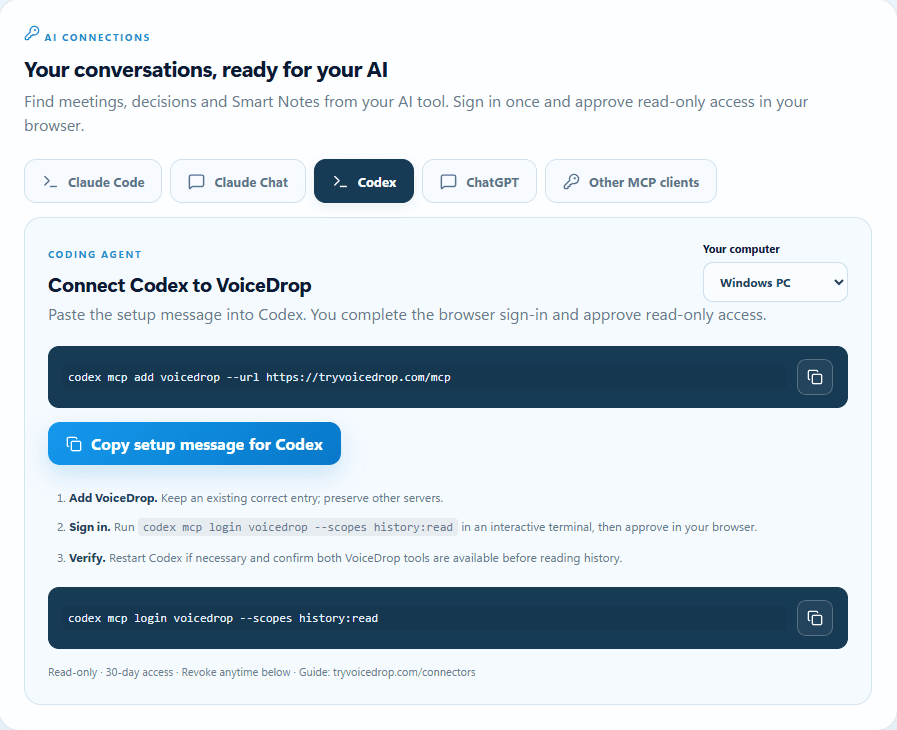
Both coding tools have their own MCP settings, separate from the chat apps. Run the commands in an interactive PowerShell window on Windows or Terminal on Mac, and keep it open until the browser login finishes.
- Codex: run
codex mcp add voicedrop --url https://tryvoicedrop.com/mcp, thencodex mcp login voicedrop --scopes history:readand approve in the browser. See OpenAI’s Codex MCP guide. - Claude Code: run
claude mcp add --transport http --scope user voicedrop https://tryvoicedrop.com/mcp, then type/mcpin Claude Code, pick VoiceDrop and choose Authenticate. See Anthropic’s Claude Code MCP docs.
Connecting Claude in the browser does not configure Claude Code, and the other way round. Each one asks for its own approval. The always-current instructions for every client, including other MCP clients, are on our connectors page.
What can I ask once it is connected?
Be specific about which recording you mean and what you want back. A few examples that work well:
Find my meeting with the design team from last week and list the decisions and who owns each action item.
Look through my voice notes from this month about the pricing page and turn them into a short brief with open questions.
Read yesterday’s customer call and draft a polite follow-up email in Norwegian that confirms what we agreed.
If you record ideas while walking, the walk and talk guide shows how to get more useful notes to begin with. For meetings, see meeting notes without a bot.
What should I consider about privacy?
Connecting an assistant means that whatever it reads is sent to that AI provider and handled under their terms. Only connect accounts you are comfortable sharing that history with, and ask the assistant to read a specific recording rather than everything when that is enough.
Speaker labels come from diarization, which separates voices but does not verify who is speaking. Smart Notes are AI summaries, so review them before you share decisions or action items with others.
What if it does not work?
- The connection fails: check that the browser signed in to the same VoiceDrop account you record with, then try once more. Cancel an old login attempt before starting a new one.
- The assistant says access has expired: access lasts 30 days. Reconnect from the same settings screen.
- The tools are missing in Codex or Claude Code: restart the app or reopen the session, then check that
voicedrop_list_historyandvoicedrop_get_historyare listed. - A dictation is missing: quick dictations are only available after you turn on cloud sync in the desktop app.
- The option to add a connector is missing: your plan or workspace may not allow custom connectors. Ask your workspace owner.
- You cannot see whether it is connected: refresh the list in VoiceDrop, Settings, AI connections.
Still stuck, or want the connector to do more? Email the founder with the client you use and what you see. Support is personal, and connector requests go straight onto the list.
Talk directly to the founder
VoiceDrop is founder-led, so support is personal: when you write, I read it and answer myself. Ask for a feature: write to me at hi@tryvoicedrop.com. Many of this month’s improvements were driven by real-world testing and feedback.
Gustav Tøstie, founder
Shipped in October 2026
- Eight desktop releases (0.4.13 to 0.4.20), plus iPhone updates
- Faster paste into the app you are typing in
- Filler words like “um” removed automatically in Windows and Mac dictation
- Start and stop recording from Control Center on a locked iPhone, with a notification when the transcript is ready
- Free plan raised to 30 minutes a month
- This website in seven languages