
Download VoiceDrop
Choose your device and sign in with the same account. Your plan, minutes and library follow you.
Windows
Dictate into any app, capture meetings with microphone and computer audio, or upload a recording.
Download for WindowsWindows 10 or 11, 64-bit Intel or AMD. Setup help
Mac
The same dictation and meeting capture, built for macOS. Developer-signed and notarized by Apple.
macOS 13 or later. Permissions
iPhone
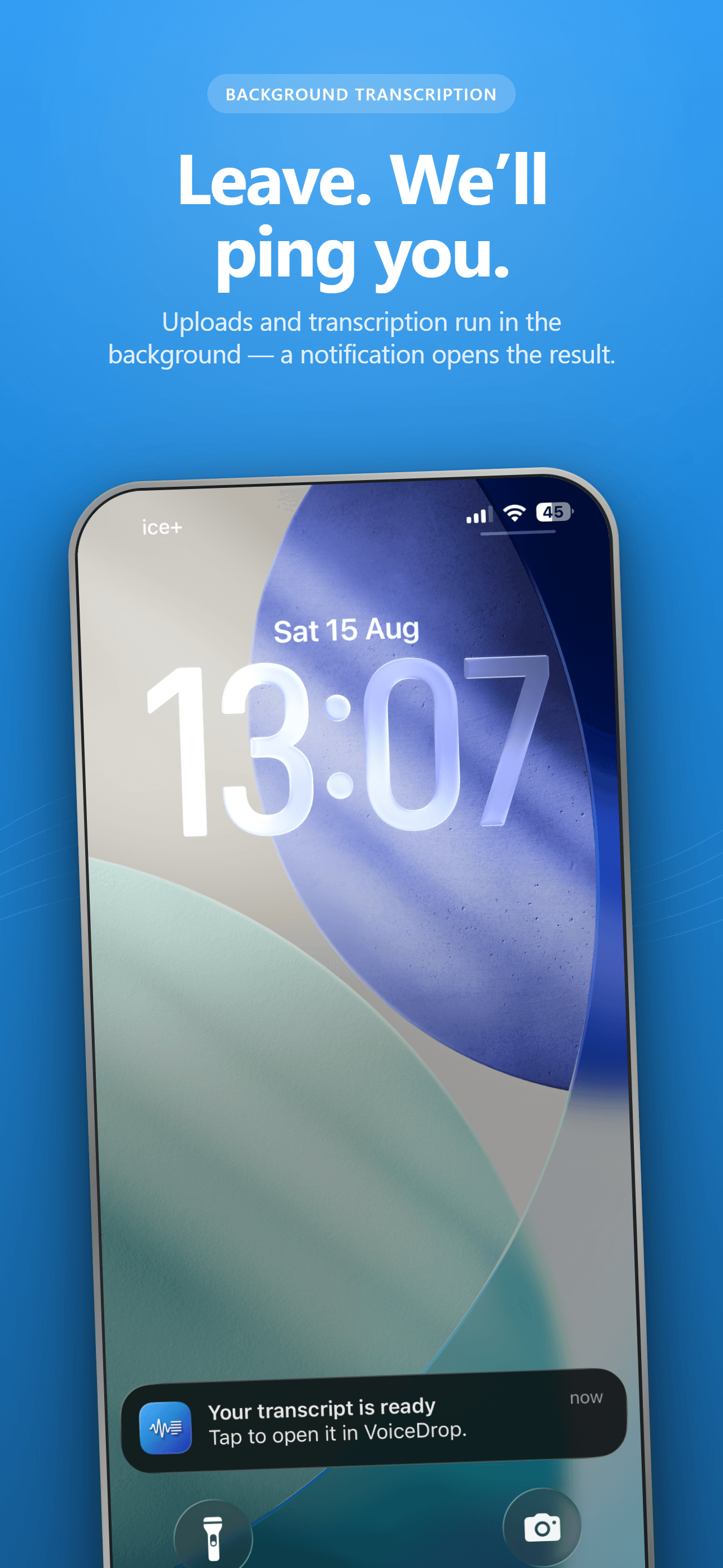
Record meetings and lectures with the screen locked, or share from Voice Memos. Get a notification when the notes are ready.
 Download on the App Store
Already have an account? Open your web library.
Set up on Windows
- Download and install. Open the installer. If VoiceDrop is already installed, install over it; there is no need to uninstall first.
- Sign in and choose your microphone. Follow the guided setup and allow microphone access when Windows asks.
- Try a dictation. Click a text field, hold your shortcut, speak when the overlay shows Listening, and release. Change the shortcut in Settings.
Set up on Mac
- Pick the right installer. Apple silicon is for M-series Macs. Intel is for older Intel-based Macs.
- Install. Open the DMG, drag VoiceDrop into Applications, then open it.
- Approve permissions. VoiceDrop asks for Microphone, Screen & System Audio Recording, and Accessibility when you first use those features. macOS groups screen and meeting sound in one permission; VoiceDrop uses it for meeting audio only and saves no screenshots or screen video.
Before you start
How do I get future updates?
VoiceDrop can notify you when a new version is ready. Go to Settings, choose Check for updates, then Install and relaunch. Updates are verified with VoiceDrop’s cryptographic update signature before installation. The download buttons on this page always point to the latest published release.
Windows shows a publisher warning
The current Windows installer does not yet have a Windows publisher (Authenticode) certificate, so Windows may show an unknown-publisher or SmartScreen warning. That is separate from VoiceDrop’s signed in-app update channel. Only download VoiceDrop from this website. If you are unsure about a warning, contact support before proceeding, and do not disable your security software.
Windows blocked the downloaded installer
First check that the file came from tryvoicedrop.com. If SmartScreen offers More info, open it and choose Run anyway only if you trust this download. You can also right-click the installer, open Properties, then General, and choose Unblock when that option is present. This removes the downloaded-file block; it does not sign the installer. If your work computer blocks installation, ask your IT administrator.
Do Windows and Mac need separate subscriptions?
No. Sign in with the same VoiceDrop account to use your plan and shared minutes on every device. Subscribe on the web from a computer, or in the iPhone app through the App Store.
Can I record an in-person meeting without a call?
Yes. Meeting capture can record just your microphone. For online calls it can also capture the sound playing through your selected output. Always tell participants and get the necessary permission before recording.
What if text cannot be inserted?
VoiceDrop works with most standard text fields, but some apps or elevated windows block insertion. Your dictation stays available in VoiceDrop. Click the destination field and use your reinsert shortcut, or paste manually.
Need a hand? Contact support or read the FAQ.