
Meeting notes without a bot: how it works and how to ask for consent
By Gustav Tøstie, founder of voicedropPublished 6 min read
Written by the founder of VoiceDrop. We compare fairly, but we’re obviously fans of our own app.
Short answer
You can get meeting notes without a bot by recording on your own device: an app captures your microphone and the computer’s audio output, then transcribes it with speaker labels and a summary. Our app, VoiceDrop, does this on Windows, Mac and iPhone. Nobody new appears in the participant list, so you should tell everyone you are recording and ask for their consent before you start.
Why people pick VoiceDrop
- No bot in the call: nothing joins Teams, Zoom or Google Meet, and it works with any call your computer plays, even with headphones.
- In-person meetings too: put your iPhone on the table, lock the screen, start and stop from Control Center, and get a notification when the notes are ready.
- Notes you can act on: a transcript with speakers and timestamps, plus Smart Notes with a summary, decisions and action items.
- Every feature free to try: 30 minutes a month on the free plan, no card, and Pro from $7.99 a month with 1,200 minutes.
What does "meeting notes without a bot" mean?
Most AI note takers work by sending a bot into the call. It joins Teams, Zoom or Google Meet as an extra participant, records what it hears on the platform, and emails a summary afterwards. The alternative is local capture: an app on your own computer records your microphone plus the sound your computer plays, which is everyone else on the call. The transcript and notes are made from that recording.
Local capture works with any call that plays through your computer, including headphones, and needs no plug-in or admin approval for the meeting platform. It also means nobody sees a visible "Notetaker" tile, which is exactly why consent matters more, not less. More on that below.
Which is better: a meeting bot or local capture?
Neither is better for everyone. Bots have real advantages, especially inside a company that has standardized on one platform. Here is an honest comparison.
| Local capture: VoiceDrop (our app) | Meeting bot | |
|---|---|---|
| Visible to others | No, nothing is added to the call | Yes, joins as a participant |
| Speaker names | Voices are separated by sound; names are suggested and you confirm them | Can often take names from the platform |
| Works with | Any call your computer plays, plus in-person meetings via mic or phone | Platforms the vendor supports |
| Setup | Install an app and grant microphone and audio permissions | Calendar access and often admin approval |
| Host can block it | Not applicable, so you must ask for consent yourself | Yes, many hosts remove or deny bots |
| Your device must be on | Yes, you record from the meeting you are in | No, the bot can attend without you |
| Audio quality | Depends on your mic, network and how the call sounds on your machine | Clean per-participant streams in many cases |
If you need a recording of meetings you do not attend, or perfect names straight from the participant list, a bot is the better tool. If you want something that works across every platform, in person, and without an extra attendee, local capture fits better.
How do I record a meeting without a bot on Windows or Mac?
This is how it works in VoiceDrop on Windows 10/11 and macOS 13 or later. Other local recorders follow a similar pattern.
- Install the desktop app Download VoiceDrop for Windows or Mac and sign in. The free plan includes 30 minutes a month with recordings up to 10 minutes.
- Grant permissions On a Mac, allow Microphone and Screen & System Audio Recording. The second one is used for meeting audio only; no screenshots are taken. On Windows, allow microphone access if Windows asks.
- Choose your inputs Pick the microphone you speak into and the audio output the call plays on, for example your headphones.
- Tell people and start Announce the recording at the start of the call, then start capture in VoiceDrop. Teams, Zoom, Google Meet or a plain phone call through the computer all work the same way.
- Stop and review Stop when the meeting ends. You get a transcript split by speaker with timestamps, and Smart Notes with a summary, decisions and action items. Read them through before you share them.
- Confirm names If you connected a Google or Outlook calendar (read-only, optional), VoiceDrop suggests names from the invite. You confirm or correct them.
What about in-person meetings?
For a meeting around a table, record with the microphone on your laptop, or use the iPhone app. Put the phone in the middle of the table, start recording, and lock the screen. You can start and stop from Control Center, even when the phone is locked, and leave the app while it uploads. You get a notification when the transcript and Smart Notes are ready.
On iPhone, VoiceDrop can suggest names from introductions such as "I’m Jess, I run marketing". You choose whether to apply them.
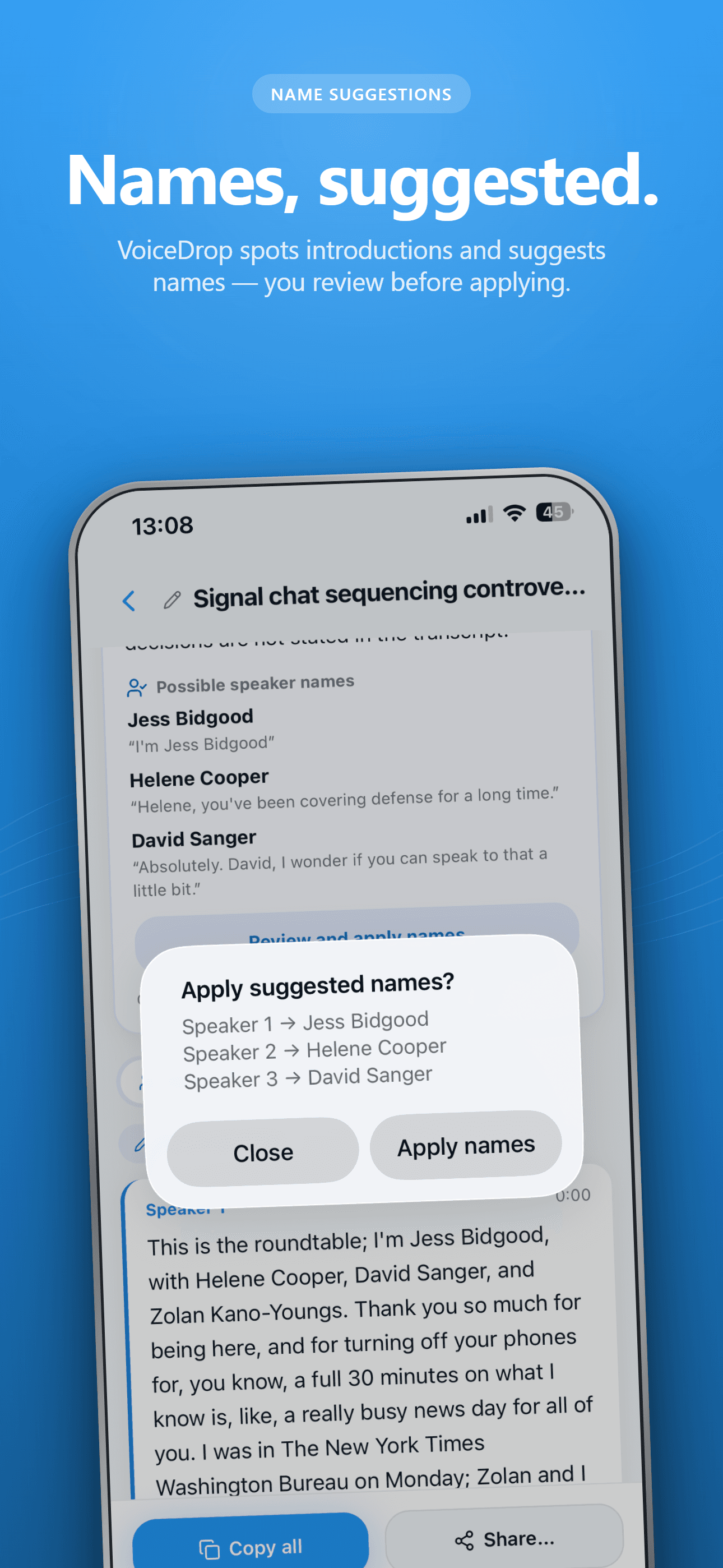
One practical tip: if people take turns introducing themselves at the start, you get better name suggestions and a clearer record of who was present.
Why should I ask for consent when no bot is visible?
A bot announces itself. Local capture does not, so the responsibility moves to you. People speak differently when they know they are recorded, and they have a reasonable expectation to be told. Asking first is also the simplest way to stay on the right side of the rules where you live.
Rules differ by country and, in the United States, by state. Some places allow recording when one party to the conversation consents; others require the consent of everyone in the conversation. In the EU and EEA, the GDPR applies to recordings that identify people, including at work, and national data protection authorities publish their own guidance. The Norwegian authority, for example, says that as a starting point you must inform people and ask for consent before recording, and that employers generally cannot rely on consent from employees because of the power imbalance (Datatilsynet, in Norwegian).
How do I ask for consent to record a meeting?
- Ask in advance when you can: a line in the calendar invite gives people time to object.
- Say it again at the start of the meeting, before you press record.
- Explain what you record, why, and who gets the notes.
- Make it easy to say no, and have a plan: take notes by hand or pause the recording.
- If someone joins late, tell them when they arrive.
Before we start: I’d like to record this call so I get an accurate transcript and notes. It’s only for my notes and I’ll share the summary with you afterwards. Is everyone okay with that? If not, I’ll take notes by hand.
Note: I record this meeting for transcription and notes, shared with attendees afterwards. Let me know before the meeting if you’d rather I didn’t.
Keep the wording short and plain. A friendly sentence works better than a legal paragraph, and it gives people a real chance to answer.
What happens to the audio and the notes?
In VoiceDrop, audio is sent securely for transcription and is not kept in your account after it has been processed. The transcript and Smart Notes are saved to your account so you can find them later in the apps or the web library. Tell participants this if they ask; it is often the first question.
If you want to work with the notes in an AI assistant afterwards, you can connect your history to Claude or ChatGPT with a read-only connector. For shorter thoughts between meetings, dictation on Windows uses the same account and minutes.
How much does it cost?
VoiceDrop is free for 30 minutes a month. Pro is $7.99 a month with 1,200 minutes and recordings up to 60 minutes; Max is $13.99 a month with 2,400 minutes and recordings up to 120 minutes. Every plan has every feature, and minutes are shared across Windows, Mac and iPhone. See pricing for annual prices. Missing something for your meetings, such as an export format or an integration? Write to the founder at hi@tryvoicedrop.com; requests are read personally.
Talk directly to the founder
VoiceDrop is founder-led, so support is personal: when you write, I read it and answer myself. Ask for a feature: write to me at hi@tryvoicedrop.com. Many of this month’s improvements were driven by real-world testing and feedback.
Gustav Tøstie, founder
Shipped in October 2026
- Eight desktop releases (0.4.13 to 0.4.20), plus iPhone updates
- Faster paste into the app you are typing in
- Filler words like “um” removed automatically in Windows and Mac dictation
- Start and stop recording from Control Center on a locked iPhone, with a notification when the transcript is ready
- Free plan raised to 30 minutes a month
- This website in seven languages